
Bingo Overlay for Streamers
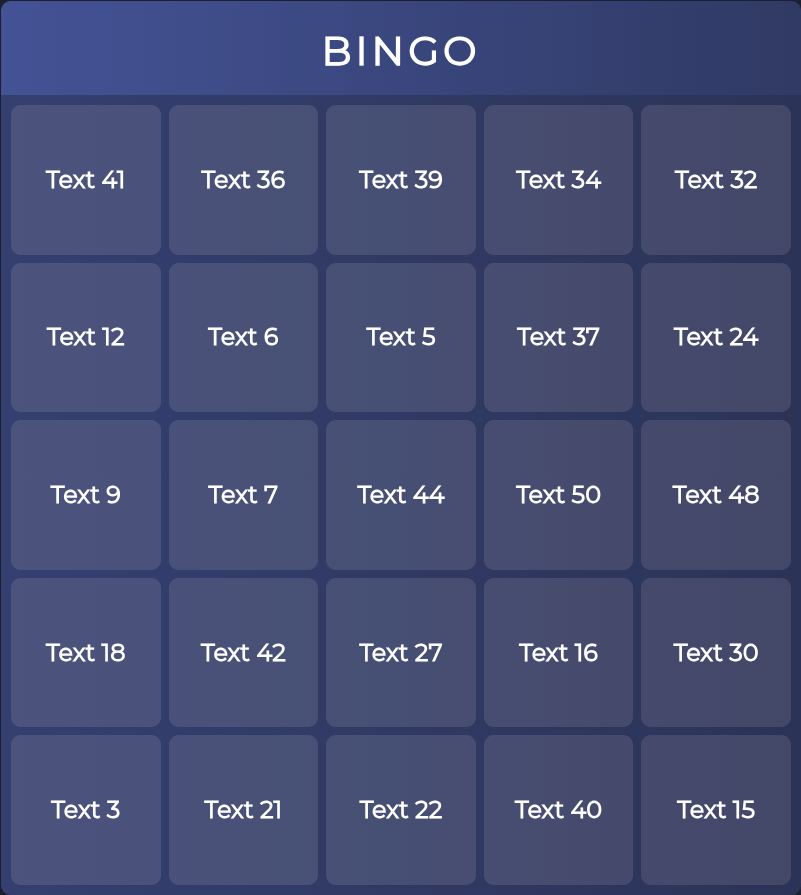
Create an interactive Bingo overlay for your Twitch stream – directly in the ByteMate Dashboard, no additional software needed. Perfect for community events, chat games, and boosting engagement.
Features
What the Bingo Overlay Can Do
🎨
Custom Design
Customize the title, background color, and font to match your stream. Your Bingo, your look.
🔢
Flexible Field Sizes
Set font sizes for the title and fields independently.
🔗
Ready Instantly
After creating your Bingo, you immediately receive your overlay and edit links.
🖱️
Mark Fields Live
Check off fields directly in OBS via “Right-click → Interact”.
🔀
Auto Shuffle
Fields are optionally reshuffled on every load.
🔊
Bingo Sound
A sound effect on Bingo can be enabled or disabled.
Why Bingo in Your Stream?
Streaming bingo is one of the easiest and most popular ways to actively engage your community. Instead of just watching passively, streamers and viewers can check off fields together — whether during gaming streams, IRL content, just chatting, or community events. This drives more chat interaction, longer watch times, and a stronger sense of community. It works especially well for regular stream formats or recurring events. With the ByteMate Bingo Overlay, you don’t need any external software, no separate account, and no complicated setup — everything runs directly in the browser.
SETUP
Ready in 60 Seconds
After creating your Bingo, you’ll receive a unique overlay link. Simply add it to OBS Studio as a browser source (recommended size: 800×800 px). All settings, links, and past Bingos are neatly organized in your ByteMate Streamer Dashboard.
FAQ
Frequently Asked Questions
The overlay is an interactive tool you add as a browser source in OBS. It displays a Bingo grid in your stream that you and your community can fill out together during a live session.
Yes, you can label every field individually. This lets you adapt the overlay to any topic – gaming, IRL streams, community events, and more.
You just need a free ByteMate account – sign up with your Twitch account in seconds.
You’ll receive a link that you add to OBS as a browser source. Setup takes less than a minute.
Yes, the tool is built directly into the ByteMate Dashboard and is controlled from there.
Ready for Community Bingo?
Create your first Bingo in less than a minute – free, no installation required.